
How to set up QR code karaoke sign-ups (free, step by step)
Paper slips get lost, smudged and misread. A QR code on the screen that opens a one-box form gives you clean, typed sign-ups in the order they came in, right on your phone. It costs nothing and takes about 15 minutes.
▶ Prefer to watch? Watch the start-to-finish video (14:19): making the Google Form from scratch, the QR code, your songbook and sending sign-ups straight into KJ Forge Host, with a pause after every step so you can follow along. Or browse all the KJ Forge video tutorials.
What you need: a free Google account (the one you'll check on your phone), the free Google Sheets app on your phone, and about 15 minutes. Do this at home, not at the bar.
1. Make a one-box sign-up form
- Go to forms.google.com and sign in with your Google account. Click Blank form.
- Click the title and type something like Sign up to sing. In the description under it, add a line such as One song per sign-up. Listen for your name!
- Click the first question. Change its type to Short answer and name it Your name, song and artist.
- Click the three dots on the question, choose Description, and type an example: Mike - Rebel Yell - Billy Idol. People copy the example, so your sign-ups all come in the same order.
- Turn on Required at the bottom of the question.
Why one box?
In a dark, loud bar, every extra field is a reason to give up. One box is the fastest sign-up there is, and you can still read it at a glance.
Prefer separate fields? Make three Short answer questions instead: Name, Song and Artist. Everything below works the same way.
2. Two settings that keep it quick
Click the Settings tab at the top of the form and open Responses:
- Collect email addresses: set it to Do not collect.
- Limit to 1 response: leave it off. Turning it on makes every singer sign in to a Google account first, which kills sign-ups. It also stops people from signing up for a second song.
Then open Presentation. Change the confirmation message to something like Got it! Watch the screen for your name., and turn on Show link to submit another response so duets and second songs are one tap away.
3. Publish the form and copy its link
- Click Publish at the top right. Under who can respond, make sure it says Anyone with the link, then click Publish.
- Click the link icon at the top (or Published, then Copy responder link). Tick Shorten URL and click Copy.
Copy the responder link, not the address in your browser bar. The browser address opens the editor, and singers would get a "you need access" page.
4. Turn the link into a QR code
Easiest: let KJ Forge Host make it
- In KJ Forge Host, open Show › Settings (Ctrl+,) and go to the Singer Display tab.
- Paste your form link into QR code link. Host draws the code for you. (Using the KJ Forge Host Online Songbook? Use your songbook address there instead: click Use my songbook, or paste kjforge.app/songs/yourname. Here's why that works better.)
- Add a QR caption like SCAN TO SING and pick its color. Use QR position to put it left or right of the singer list, and to set its size.
- On the Show & Rotation tab, tick Show the singer display (next up + QR) automatically after each song. Now the code is on screen exactly when people are looking.
Want a styled code for table tents and posters? Use Adobe Express (free)
- Search for Adobe Express QR code generator and open Adobe's free tool.
- Paste your form link, then pick a style and colors. Keep the code dark on a light background so every phone can read it.
- Download it as a PNG for the screen, or a PDF for printing.
- To show your styled code in Host, go back to Settings › Singer Display, click Browse next to QR code image, and pick the PNG. A picture you choose there is used instead of the link. If your picture already has words on it, leave QR caption blank.
Watch out for "free" codes that stop working. Some QR sites give you a code that runs through their servers and stops working when a trial ends, which is a bad surprise on table tents you already printed. Adobe Express makes static codes: the link is baked into the picture, so they never expire. Host's own code is static too.
5. See sign-ups on your phone
This is the part that makes it work during a show. You get a live list on your phone that fills in as people sign up.
- Back in your form, click the Responses tab, then Link to Sheets. Choose Create a new spreadsheet and click Create.
- On your phone, install Google Sheets (App Store or Google Play) and sign in with the same Google account.
- Open the spreadsheet. It's named after your form, like Sign up to sing (Responses). Tap the star so it's always at the top of your list.
- Each sign-up is a new row at the bottom, with the time it came in. That's your sign-up order.
Keep track as you go
Add a Done column with checkboxes in the first empty column to the right (in Sheets on a computer: Insert › Checkbox), then tick each singer once they're in your rotation.
Don't rename or move the first row's headings. The form uses them to know where new sign-ups go.
Rather get pinged? On the Responses tab, click the three dots and choose Get email notifications for new responses. The email only says a new sign-up came in, so keep the sheet open for the actual list.
6. Open and close it each show
- End of the night: in your form, click Published and turn off accepting responses, so nobody signs up from their couch at 2 AM. Turn it back on before the next show.
- Fresh start: in the sheet, select last show's rows (not the heading row) and delete them. Or just leave them, since the timestamps show which night they're from.
7. Test it before the show
- Put the code on screen and scan it with two phones, ideally an iPhone and an Android. On most phones from the last several years, the normal camera app reads QR codes; just point it at the code and tap the link that pops up.
- Send a test sign-up and check that it shows up in the sheet on your phone.
- Delete the test row.
- Check from the back of the room. If a phone struggles, raise QR position size to 100% or dim the room lights near the screen.
Bonus: tap a song to sign up (KJ Forge Host Online Songbook)
KJ Forge Host can publish your song list as a searchable page singers open on their phones, at kjforge.app/songs/yourname. Connect it to your form and singers tap a song instead of typing it. You still only need one QR code.
- In Host, open Library › Online Songbook. Pick a songbook name and web address, tick Share my song list online, and click Save & Publish Now. Do this on the computer with your full library.
- Paste your form's link (the one from step 3) into Sign-up form link and click Fix it for me. Host opens your form the way a singer would, finds your song question and makes the link that fills in the song. When it says Looks good, click Save & Publish Now again. (By hand instead: in Google Forms click the three dots › Pre-fill form, type SONG in the song box, click Get link › Copy link and paste that.)
- Click Copy Link in Host to copy your songbook address.
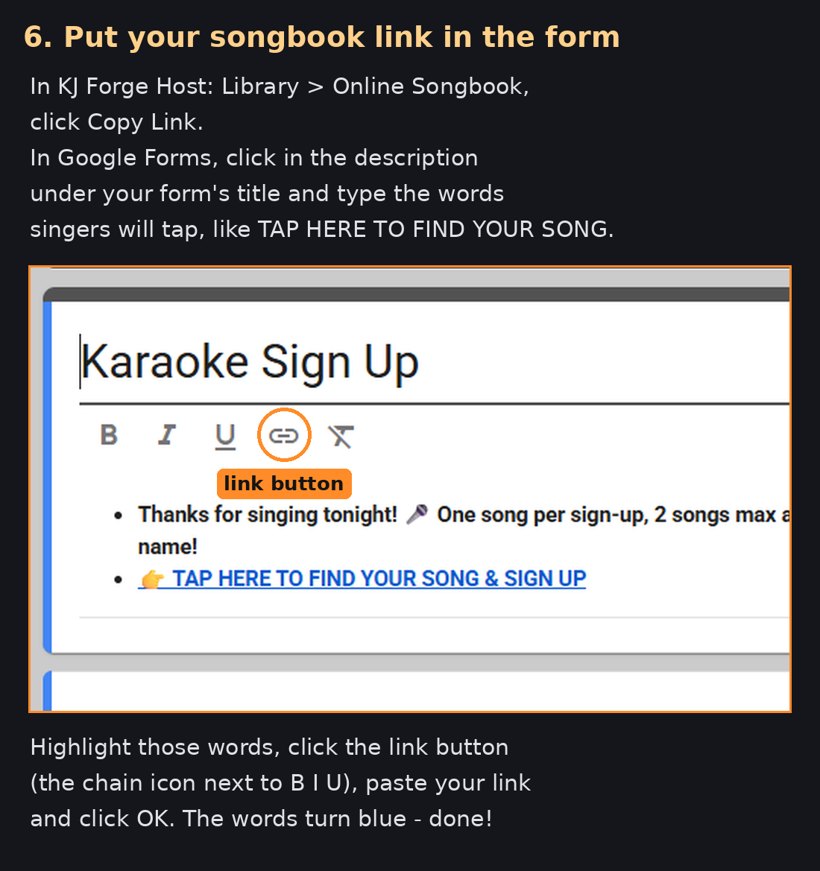
- Put it in your form as a link singers can tap. In Google Forms, click in the description under your form's title and type the words singers will tap, like 👉 TAP HERE TO FIND YOUR SONG & SIGN UP. Highlight those words, click the link button (the chain icon next to B I U), paste your songbook address into the Link to box and click OK. The words turn blue and underlined, and Google Forms saves by itself.
Best setup: point your QR code at the songbook, not the form
Most singers skip a link inside a form and go straight for the name box, so they never see your songbook. Fix that by making the songbook the first thing they open:
- In Host, open Show › Settings › Singer Display.
- Next to QR code link, click Use my songbook (or paste your kjforge.app/songs/yourname address), then click Save.
Now the code opens your songbook. Singers search, tap a song, and your form opens with it filled in. Anyone who'd rather just type taps Sign up to sing on the songbook, which opens your form blank. Keep the blue link in your form too, for anyone who reaches the form another way, like a link you posted online.
Either way, singers find a song and type their name once. The form opens already filled in, like Jenna - Valerie - Amy Winehouse, and they just tap Submit. The phone remembers their name for next time.
Tips from real shows
- Say it on the mic every few songs: "Scan the code on screen to sign up."
- Put the same code on a sign at your booth, for people who walk up while a song is playing.
- Older phones: some older phones can't scan with the camera and need a free QR scanner app from their app store (on many Androids, the Google Lens button in the camera or search bar works too). Help the first few people at your booth and word spreads.
- Backup link: put your short form link (the forms.gle/… one from step 3) under the code on your booth sign, or in the Host QR caption, so anyone whose phone won't scan can type it in.
- Keep a few paper slips for people without phones, and type them into the sheet yourself so everything stays in one list.
- Add each sign-up to your rotation as it comes in, so the order stays fair. See how to keep a rotation fair.
Try KJ Forge Host free for 14 days
Karaoke hosting software for Windows, built by a working KJ: forgiving search, singer rotation, saved keys, a singer display with your QR code, an online songbook and a soundboard. Every feature, no credit card.
Questions
Do I need special software for QR code karaoke sign-ups?
No. A free Google Form, a free QR code and the free Google Sheets app on your phone are enough. Show the code on your singer screen between songs.
What should a karaoke sign-up form ask?
Just name, song and artist. One box with an example like "Mike - Rebel Yell - Billy Idol" is the fastest for singers. Three separate boxes work too if you prefer.
How do I see karaoke sign-ups on my phone?
In the form's Responses tab, click Link to Sheets to make a spreadsheet. Open it in the Google Sheets app on your phone. Every sign-up is a new row with the time it came in.
Why does my form ask singers to sign in to Google?
"Limit to 1 response" is turned on, or email collection is set to Verified. Turn both off in Settings › Responses, and anyone can sign up without an account.
What if a singer's phone won't scan the QR code?
Most phones scan with the normal camera app. Older phones may need a free QR scanner app, or Google Lens on Android. Also show your short forms.gle link under the code so anyone can type it in.
Do free QR codes expire?
Static codes, like the ones Adobe Express and KJ Forge Host make, never expire because the link is part of the picture. Some other free QR sites route codes through their servers and stop them working after a trial.